| example | ||
| nixos95 | ||
| Ressources | ||
| .gitignore | ||
| flake.lock | ||
| flake.nix | ||
| README.md | ||
| reddit.txt | ||
| Roadmap.md | ||

NixOS-95
A nostalgic Windows 95-inspired NixOS setup with modern pastel vibes.
This is a NixOS configuration designed to evoke the pixel-perfect charm of Windows 95, infused with a clean, soft pastel aesthetic. Lightweight, customizable, and perfect for retro lovers or low-spec setups.
🖥️ System Overview
- OS: NixOS
- DE: XFCE (customized)
- GTK Theme: Chicago95
- Icons & Wallpapers: aconfuseddragon
📁 Directory Overview
tree .
NixOS-95/
├── flake.nix
├── flake.lock
├── Modules/
│   ├── Applications/
│   └── System/
├── nixos95
│   ├── dotfiles/
│   ├── core.nix
│   ├── default.nix
│   ├── desktop.nix
│   ├── keybinds.nix
│   ├── taskbar.nix
│   └── theme.nix
├── Ressources/
│   ├── Icons/
│   ├── Images/
│   │   └── Wallpapers/
│   └── Themes/
├── README.md
Installation - BETA
Requirements: nix.settings.experimental-features = ["nix-command" "flakes" "pipe-operators"]; Enabled
You can initilize a new flake-based configuration with:
# minimal
nix flake init -t github:Peritia-System/NixOS-95/Dev
# with home-manager
nix flake init -t github:Peritia-System/NixOS-95/Dev#home-manager
Or follow the manual installation process:
1. Add Nixos95 to your flake and import the module
# flake.nix
{
  inputs = {
    nixos95.url = "github:Peritia-System/NixOS-95/Dev";
    nixos95.inputs.nixpkgs.follows = "nixpkgs";
  }
  outputs = inputs @ { nixos95, ... }: {
    nixosConfigurations.HOSTNAME = nixpkgs.lib.nixosSystem {
      modules = [
        nixos95.nixosModules.default
        ./configuration.nix
      ];
    };
  };
}
If you are using home-manager you should also pin your version for Nixos95:
{
    inputs = {
        ...
        nixos95.inputs.home-manager.follows = "home-manager";
    };
    ...
}
2. Import in Configuration.nix
You can configure Nixos95 under the nixos95 namespace. For a minimal config just set:
{
    nixos95.enable = true;
}
Warning: This will activate the xfce desktop manager, as well as lightdm and ssdm as display manager. You might want to disable your other desktop environment to prevent bugs.
If you want to further customize Nixos95 you can use the following config options (given values are the default ones):
{
  nixos95 = {
    enable = true; # default is false
    user = "USERNAME"; # no default set; specifies the user used by home-manager

    wallpaper = ./Resources/Images/Wallpapers/Wallpaper-1.png;

    taskbar = {
      homeIcon = "whisker-menu-button";
      battery-plugin = {
        enable = true;
        power_bar = {
            enabe = true;
            critical_at = 10;
            warning_at = 20;
            color_warning = "rgb(248,228,92)";
            color_critical = "rgb(237,51,59)";
            color_loading = "rgb(119,118,123)";
            color_default = "rgb(143,240,164)";
        };
      };
    };
    applications = [
      {
        name = "Files";
        description = "View and manage local files";
        icon = "folder_open";
        exe = "exo-open --launch FileManager";
      }
      {
        name = "Terminal";
        description = "Run commands";
        icon = "xfce4-terminal";
        pkg = pkgs.xfce.xfce4-terminal;
      }
      {
        name = "Browser";
        description = "Access the world wide web";
        icon = "firefox";
        exe = "exo-open --launch WebBrowser";
      }
    ];

    keybinds = {
      commands = [
        { key = "<Super>r"; exe = "xfce4-appfinder --collapsed"; }
        { key = "XF86WWW"; exe = "exo-open --launch WebBrowser"; }
        { key = "XF86Mail"; exe = "exo-open --launch MailReder"; }
        { key = "Print"; exe = "xfce4-screenshooter"; }
        { key="<Super>l";  exe="xflock4"; }
      ];
      xfwm4 = [ ];
    };
  };
}
3. Build and switch to the system configuration:
sudo NIX_CONFIG="experimental-features = nix-command flakes pipe-operators" nixos-rebuild switch --flake .#default
Experimental Features
NixOS-95 relys on multiple experimental nix features. These are:
- flakes
- pipe-operators They are needed to activate the configuration.
To enable them in your config set:
nix.settings.experimental-features = [
  "flakes" "pipe-operators"
];
Rebuild Notes
Due to how Home Manager and XFCE handle theming, changes may not fully apply on the first attempt.
For best results:
- Rebuild twice
- Log out and back in after each rebuild
Features
- Pixel-style retro desktop with pastel polish
- Lightweight and XFCE-powered (great for low-spec machines)
- Flake-based configuration with easy updates
- Themed with Chicago95 and matching icon set
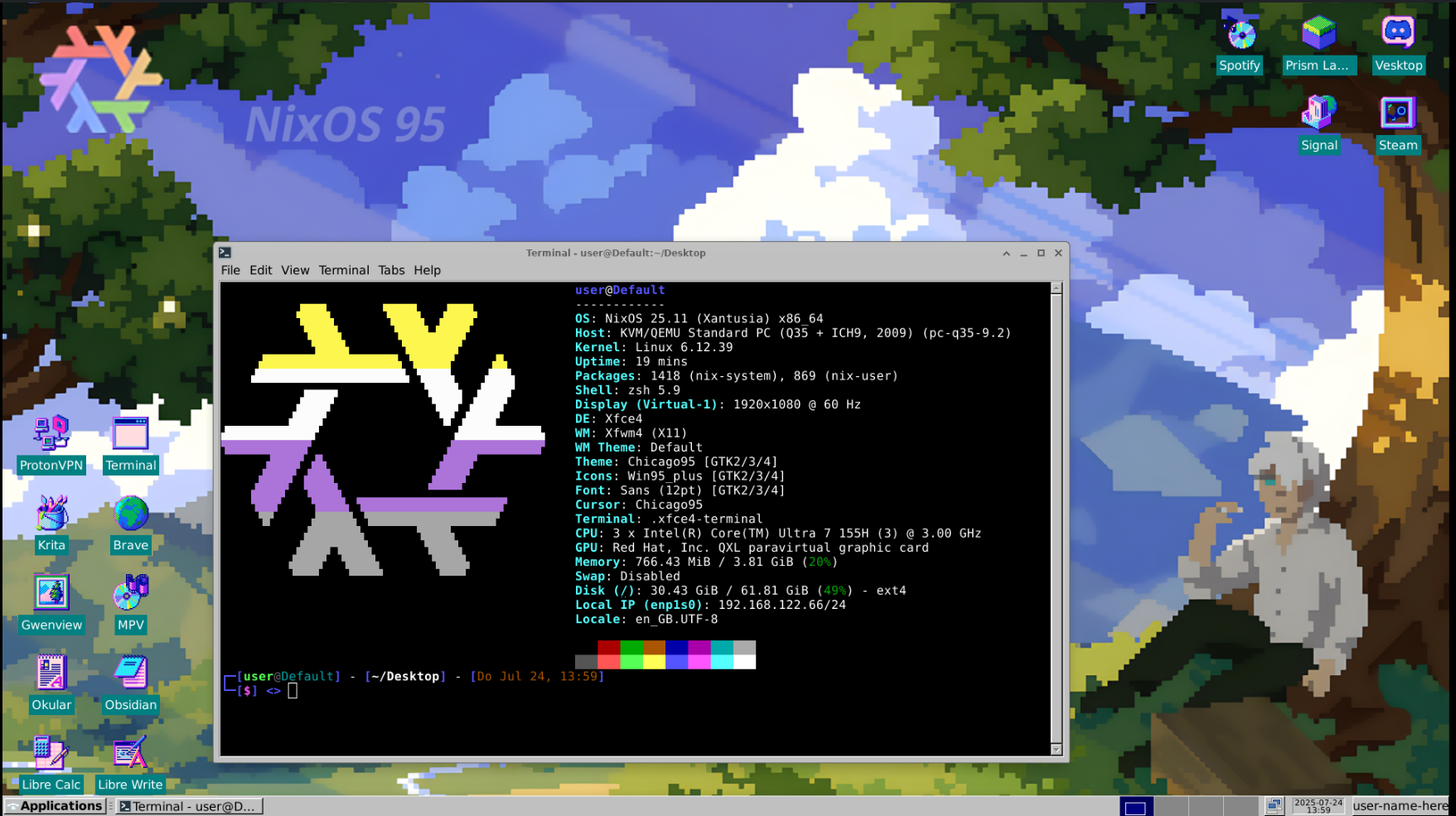
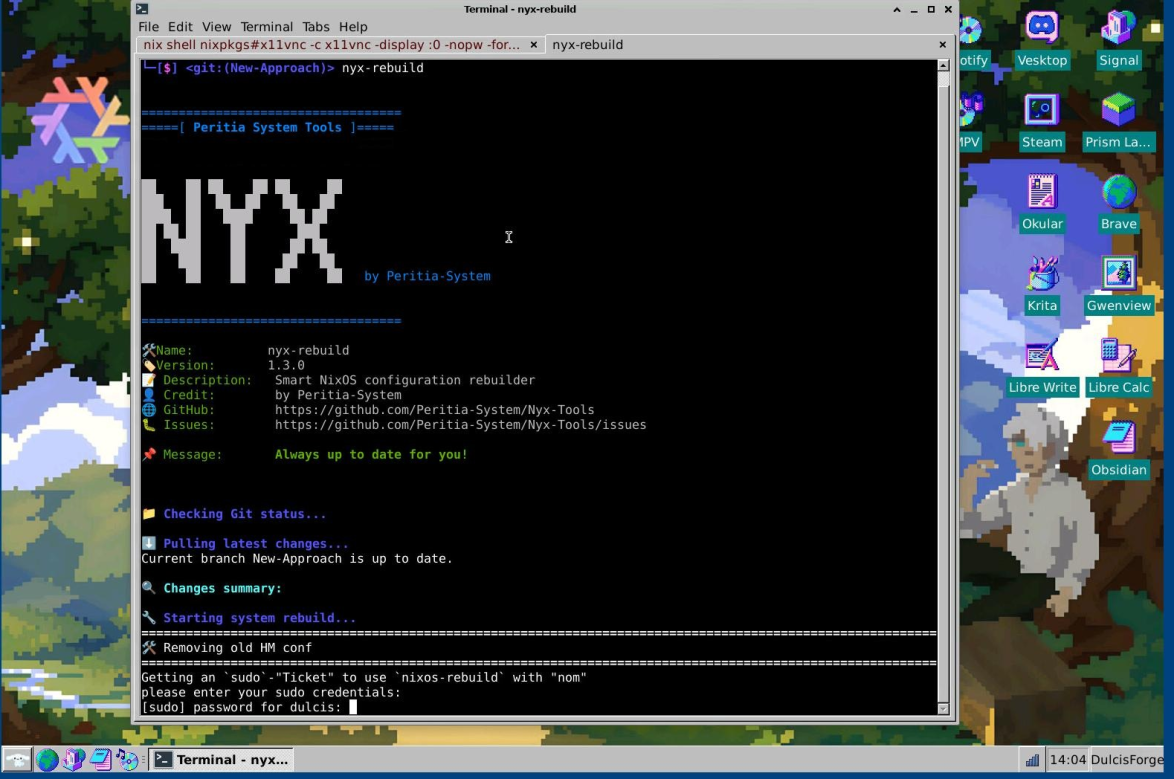
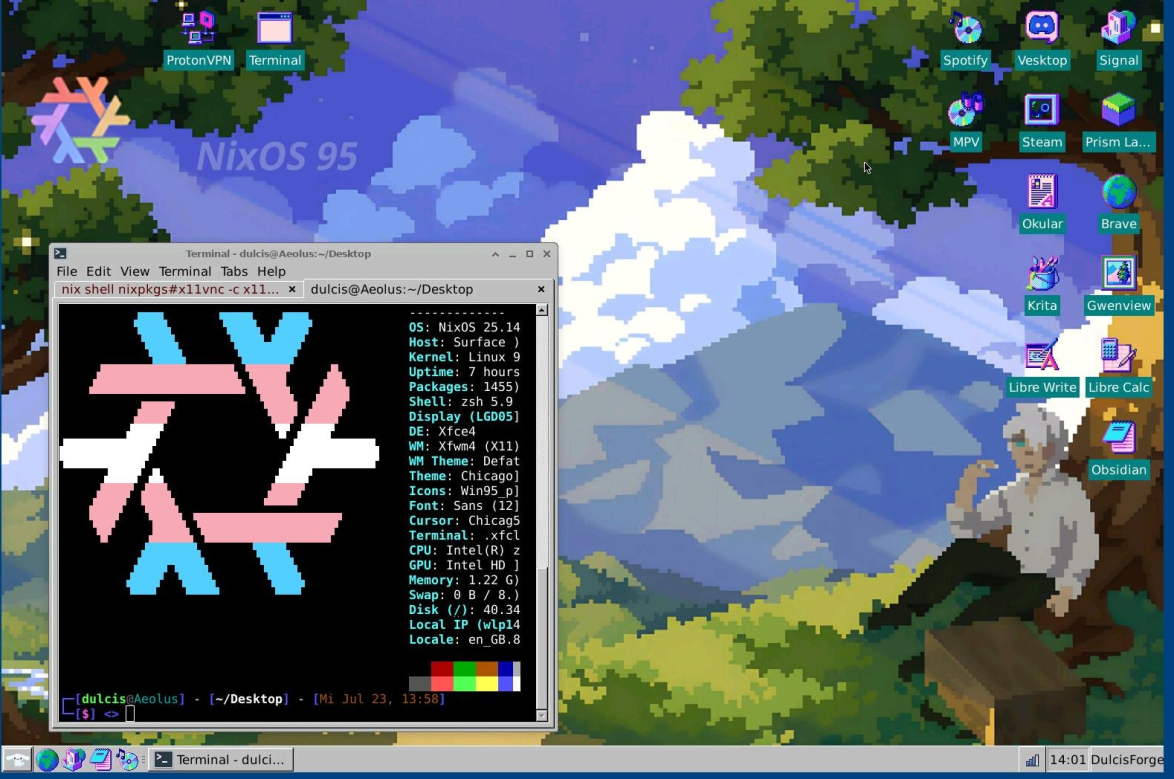
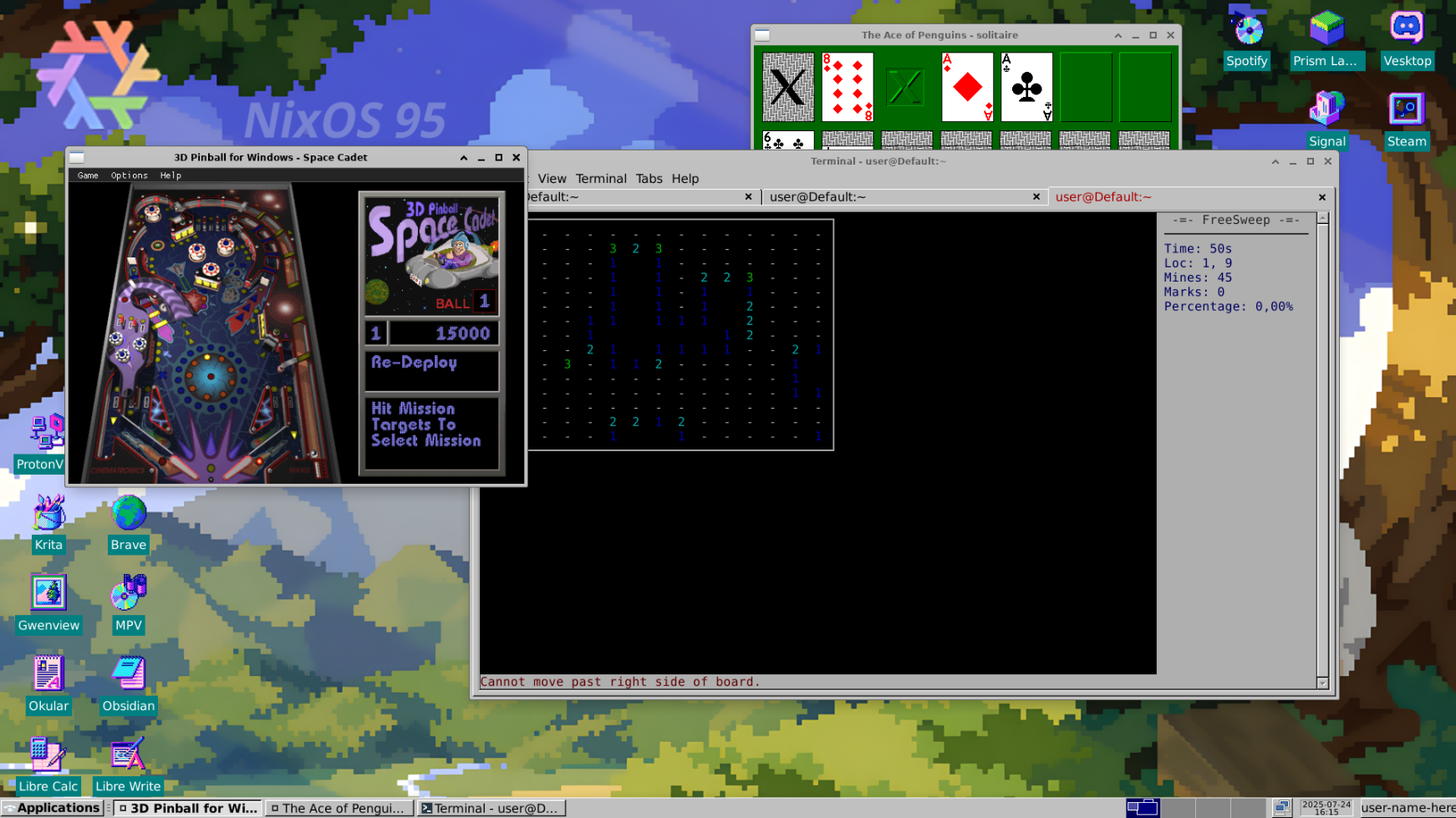
Showcase
Final Thoughts
This setup was built for my boyfriend to use during school. I love how this setup turned out—it's nostalgic and clean, so I wanted to give more people the opportunity to use it. Hope you enjoy it!